
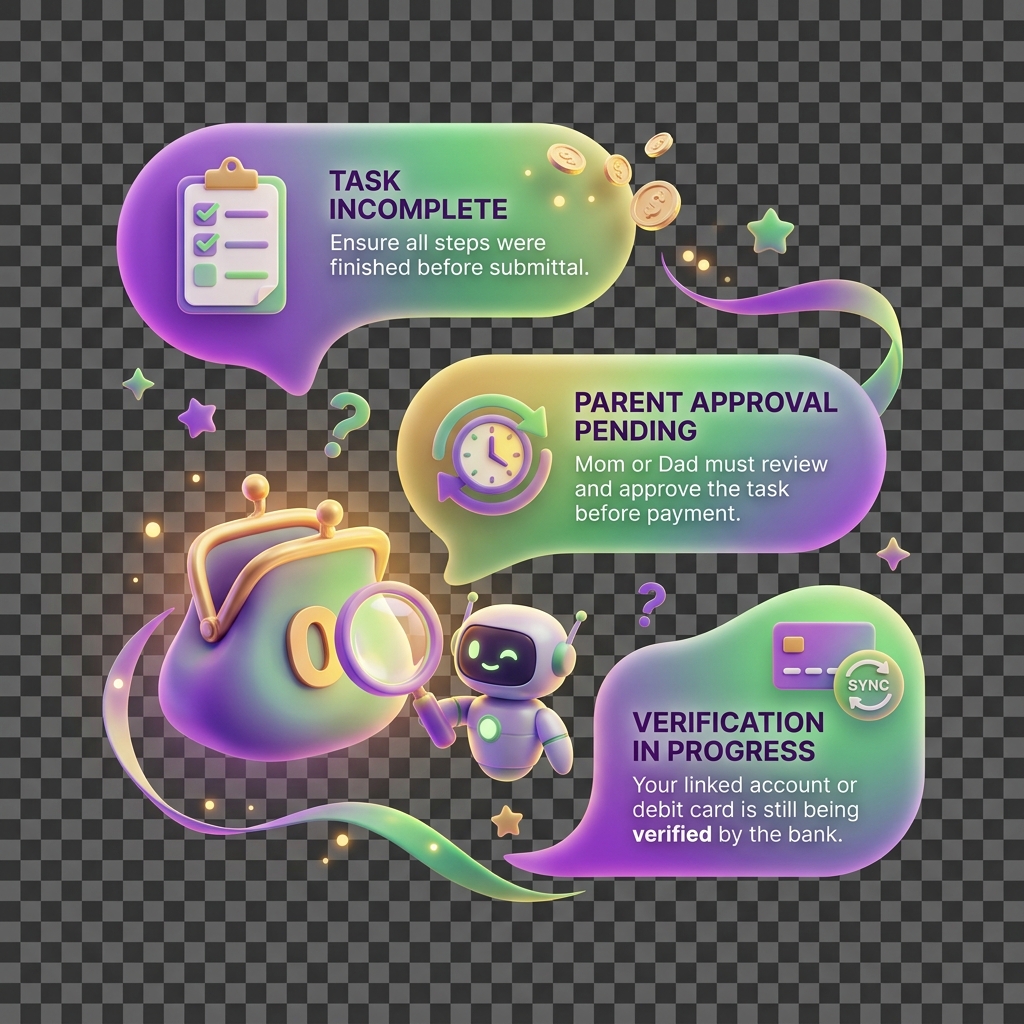
Why a task payout did not credit the child’s balance
When a child completes a task and a parent marks it as done, KiddyCash should automatically add the reward amount to the child’s wallet. If that credit never arrives, the cause is almost always a configuration gap, a state mismatch, or a wallet eligibility issue — not a payment processing failure. This article walks you through diagnosing and resolving the problem precisely.
Symptoms
- Child’s wallet balance is unchanged after a task was marked complete.
- The task card shows a green “Completed” badge but no transaction appears in the child’s transaction history.
- Parent receives no payout confirmation notification.
- In some cases, the task reverts to “Pending Review” without explanation.
Root Causes
Understanding which cause applies narrows your fix significantly.
1. Task reward amount was set to zero or left blank
If the reward field was empty when the task was created, KiddyCash saves it as 0.00 your local currency. Completing the task processes successfully but credits nothing.
2. Child’s wallet is inactive or frozen A wallet can be frozen due to a failed KYC check on the parent’s account, a subscription lapse, or a manual hold. Payouts queue silently and do not retry automatically.
3. Task was marked complete by the child, not approved by a parent KiddyCash uses a two-step completion model. The child submits completion; a parent must approve. If approval is missing, the payout never triggers — even if the task card looks complete on the child’s device.
4. Family account subscription is expired or on a free tier with payout limits Some subscription tiers cap the number of automated task payouts per billing cycle. Once the cap is hit, subsequent payouts silently fail.
5. Duplicate task entries or stale task state Editing a task while it is in “In Progress” status can create a state conflict. The UI may display completion, but the backend still holds the original task in an unresolved state.
How to Fix It
Step 1 — Inspect the task record directly
Open the task at https://kiddy.cash/family/tasks/{taskId} (replace {taskId} with the actual ID visible in your task list URL). Confirm:
- Reward amount is a non-zero value in your local currency.
- Status shows “Approved”, not “Submitted” or “Pending Review”.
- The approving parent’s name appears in the audit trail at the bottom of the task detail.
Step 2 — Check the child’s wallet status
Navigate to the child’s profile → Wallet → Account Status. If the status reads “Frozen” or “Restricted”, resolve the underlying KYC issue on your parent account first. Wallet restrictions block all inbound credits, including task payouts.
Step 3 — Verify your subscription payout allowance
Go to Family Settings → Subscription. Check your current billing cycle’s task payout count against your plan limit. If you have hit the cap, you can either upgrade your plan or manually transfer the reward amount using a transaction code from the parent wallet.
Step 4 — Re-trigger the payout
If the task status is “Submitted” (child marked done, no parent approval yet), open the task and tap Approve & Pay. This triggers the payout immediately. If the status is already “Approved” but no credit posted, tap Retry Payout — this option appears on the task detail screen when a payout has failed silently.
Step 5 — Escalate if retry fails
If the retry also produces no credit, copy the taskId and the child’s wallet ID, then contact KiddyCash support via in-app chat. Include your family account email and whether you are on a mobile money-linked wallet (e.g., mobile money). Support can force a manual credit and identify any backend processing errors tied to your account.
Note: If the task was never completed at all and you need to handle that workflow separately, see the guide on how to handle a task that was never completed.